Index
The all-staff audience is your most consequential authoring challenge — too technical and they disengage, too vague and you fail the "communicated and understood" test that ISO 27001 clause 7.3 and CMMC AC.L1-3.1.1 both require. Every page must answer the question a real employee actually asks: what do I need to do, and what happens if I don't?---
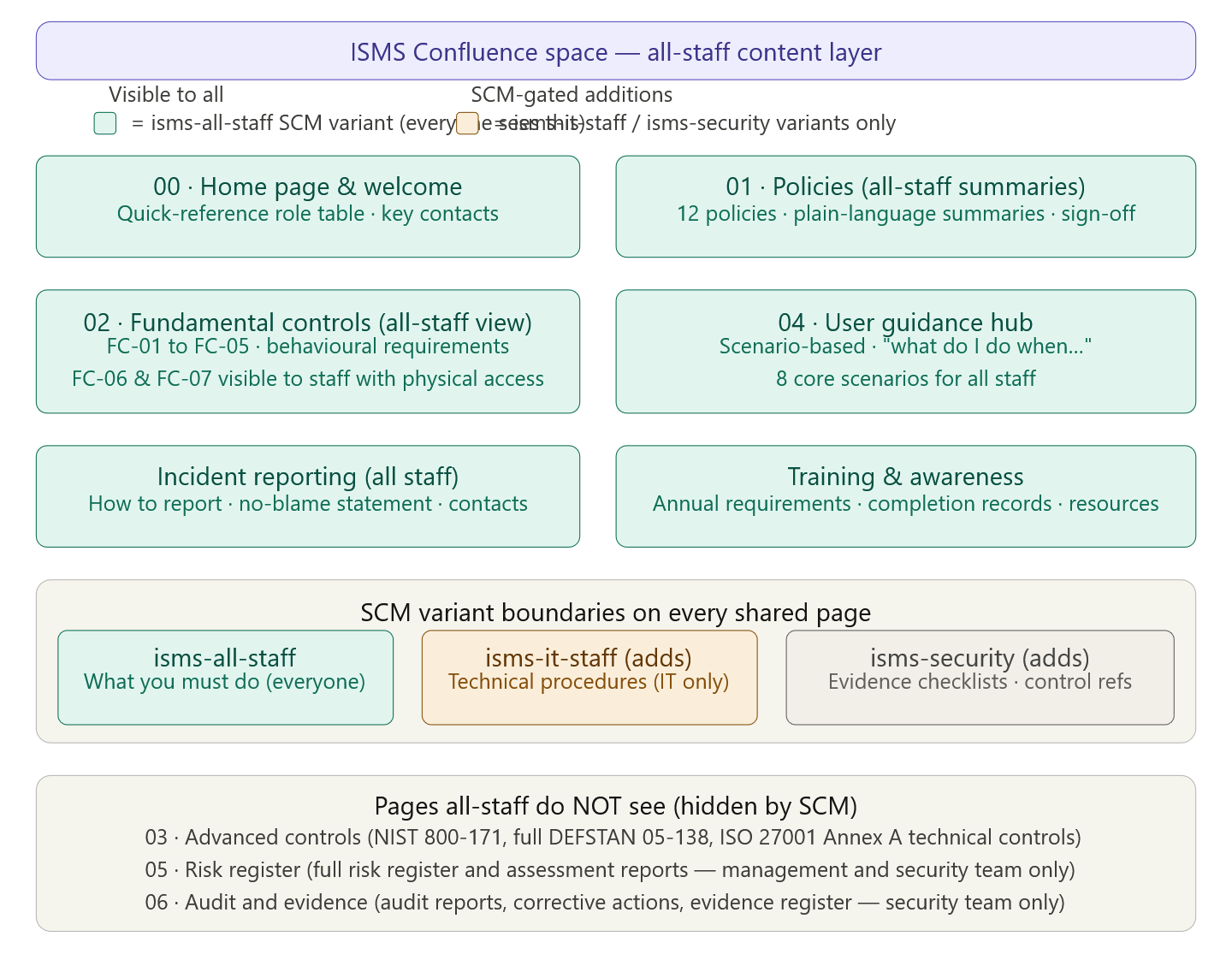
SCM variant configuration — foundational setup
Before authoring a single page, configure your four Confluence groups and map them to SCM variants. In Scroll Content Manager, go to Space Settings → Scroll Content Manager → Variants and create:
isms-all-staff — the default variant, applied to every member of the Confluence space. This is the fallback: if a user belongs to no other group, they see only this variant. Label it "All staff" in SCM.
isms-it-staff — members of IT operations, system administrators, helpdesk, and developers. This variant is additive — it shows everything isms-all-staff shows, plus the IT-specific blocks. Do not hide all-staff content from this group; they need both layers.
isms-management — members of the senior leadership team and line managers. Additive on top of all-staff. Sees governance context and risk summaries, not technical procedures.
isms-security — CISO, security analysts, internal auditors. Additive on top of all-staff and IT-staff. Sees everything including evidence checklists, control reference text, and framework citations.
isms-third-party — contractors and supplier contacts with Confluence access. A restricted variant: they see only a curated subset of all-staff content plus supplier-specific obligations. Create this as a separate SCM variant with explicit include rules rather than relying on exclude rules.
On every page in the space, the SCM macro structure follows the same pattern:
[Open SCM Variant: isms-all-staff]
  → All-staff content block
[Close SCM Variant]

[Open SCM Variant: isms-it-staff]
  → Additional IT-staff block (do not repeat all-staff content here)
[Close SCM Variant]

[Open SCM Variant: isms-security]
  → Evidence checklist and framework reference block
[Close SCM Variant]
The critical SCM authoring rule: never duplicate content between variants. Write all-staff content once in the isms-all-staff block. The isms-it-staff block contains only the additional material IT staff need. This keeps the space maintainable — when you update a procedure, you update it in one place.
Page 00 · Home page and welcome
This is the most important page in the space. It is the first thing a new starter sees and the page that a regulator or assessor is most likely to look at to understand your approach. It must orient every audience simultaneously without overwhelming any of them.
All-staff visible content:
Open with a single paragraph from the CISO or CEO — not a bland corporate statement, but a genuine sentence or two explaining why information security matters to this organisation specifically. Reference the kinds of data you handle (customer data, defence contracts, personal records — be specific enough to be credible), and what the consequence of a breach would be. This is the management commitment required by ISO 27001 clause 5.1, but written for humans rather than auditors.
Follow with a role quick-reference table — the most used element on the whole page. Three columns: Your role, What you must read, What you must do annually. Populate it for: All staff, IT staff, Managers, New starters, Contractors and third parties. This table tells someone exactly where to go without reading the entire space, and it satisfies the "communicated to relevant interested parties" requirement of clause 7.4.
Below that, a key contacts block: Information Security Team email, how to report an incident (with a prominent link to the incident reporting page), and the Data Protection Officer contact. Keep this visible without scrolling on a standard monitor — it is the most time-sensitive information on the page.
A space navigation guide: a brief paragraph explaining the five sections visible to all staff and what each contains. Not a full site map — just enough to remove the "I don't know where to start" friction.
A compliance status strip: a simple coloured table showing current certification status for ISO 27001 (certificate expiry date), Cyber Essentials (certificate expiry date), and CMMC (self-attestation date). This is visible to all staff — employees are often asked by clients or partners about certification status, and having this current and visible reduces the number of ad-hoc queries to the security team. Link each entry to the relevant certificate in the Reference Library.
SCM additions for isms-management: Add a governance summary block below the compliance status strip: management review schedule, next audit date, current ISMS objectives performance (a three-line summary linking to the full objectives page). Managers do not need the full metrics dashboard, but they need to know the headline position.
SCM additions for isms-security: Add the ISMS document register — a linked table of all twelve policies with version number, last review date, next review due date, and owner. This is the operational view the security team uses to track the document management cycle.
Page 01 · Policies — all-staff summaries
Do not expose the full twelve policy documents to all staff as the default view. Full policy documents are long, reference-heavy, and written partly for auditors. What all staff need is a plain-language summary of each policy that answers: what is this policy, what does it require of me personally, and what happens if I don't comply.
Structure the 01 · Policies section as a parent page with twelve child pages. On the parent page (visible to all staff), place a summary table: Policy name, One-sentence summary, What you must do, Annual action required (sign off / complete training / review). Each row links to the child page.
On each of the twelve child pages, the all-staff visible block follows a consistent four-part structure:
What this policy is for — two to three sentences maximum. No jargon. Example for the Access Control Policy: "This policy defines how we make sure only the right people can access our systems and data. It covers how accounts are set up, what passwords must look like, and what happens when someone leaves the company."
What it means for you — a bullet list of four to six concrete behavioural requirements written in second person. For Access Control: "You must use your own account and never share your login credentials with anyone, including colleagues. You must lock your screen when you step away from your desk. You must tell IT immediately if you think your account has been compromised. If you leave the company or change roles, your line manager must notify IT on your last day." These bullets are the content that satisfies CMMC AC.L1-3.1.1 — the authorised use requirement — and they need to be this concrete to be evidenceable.
What to do if something goes wrong — a single short paragraph with a link to the incident reporting page and the security team contact. This removes the barrier to reporting by telling people exactly where to go before they need it.
Policy acknowledgement — a Confluence task or linked form where the user confirms they have read and understood the policy. This generates the acknowledgement record required by NIST 800-171 3.2.1 and CMMC attestation. The task should be pre-assigned to all space members and tracked in the policy acknowledgement log under EV-B01.
SCM additions for isms-it-staff: The full policy text, displayed beneath the all-staff summary in a clearly labelled "Technical detail" section. IT staff need the full policy to implement it correctly, but it should not be the first thing every staff member encounters.
SCM additions for isms-security: The policy metadata block — version number, controlling ISO 27001 clause, Annex A controls operationalised, NIST 800-171 references, review history table, and next review due date. This is what the security team uses to manage the policy lifecycle and what an auditor sees during a documentation review.
Page 02 · Fundamental controls — all-staff view
Each of the seven fundamental control pages (FC-01 through FC-07) follows the same all-staff content structure. Write to the lowest-common-denominator reader — someone who has just joined, is not technically trained, and needs to know what to do without understanding why the underlying technology works the way it does.
FC-01 · Firewalls and network security — all-staff content:
"Our network is protected by firewalls that filter what can enter and leave our systems. These controls are required by our security certifications (Cyber Essentials and CMMC) and by our defence contracts." Then three rules: only connect company-approved devices to the company network; never bypass or disable network security tools; if you work from home, use the company VPN for all work activity. A "what to do" block: if you cannot connect to a resource you need, contact the helpdesk — do not try to work around the restriction. Link to the VPN setup guide (in the IT procedures section, visible via SCM to IT staff).
FC-02 · Secure configuration — all-staff content:
Two concrete rules that all staff can actually follow: do not install software on work devices without IT approval, and do not change security settings on your device. A brief explanation: "Our devices are configured to a security standard that protects both you and the organisation. Installing unapproved software or changing settings can create vulnerabilities that attackers exploit." The approved software request process — one sentence with a link to the helpdesk form. A "what counts as unapproved software" clarification: this includes browser extensions, personal cloud sync clients, and gaming platforms — not just major applications.
FC-03 · User access control — all-staff content:
This page carries more content than the others because access control failures are the most common cause of breaches and the most directly tested CMMC and Cyber Essentials control. Structure it as four short sections: Your account and credentials (unique accounts, no sharing, password requirements stated plainly — minimum 12 characters, no reuse of last 12, passphrase approach recommended); Multi-factor authentication (MFA is mandatory for all cloud services and remote access — what it is, how to set it up, link to MFA setup guide); Requesting and removing access (how to request access to a system you need, what happens when your role changes or you leave — the leaver checklist link); and Reporting suspicious access (what to do if you see a login you do not recognise or cannot access a system you should have access to).
Include a clear, prominent box: "If you are leaving or changing roles, your line manager must notify IT on or before your last day. Your access will be removed on that date. This is a security and legal requirement." This direct instruction is what makes the leaver process work in practice — it targets the manager, who is the actual trigger for the de-provisioning process.
FC-04 · Malware protection — all-staff content:
Four rules: never disable or pause anti-virus software; never open attachments or click links in emails you were not expecting, even from known contacts; never connect personal USB drives or storage devices to company equipment; report anything suspicious immediately. A "what does malware look like" section with three concrete examples written as scenarios, not technical descriptions: "You receive an email from a supplier you recognise, but the attachment is a Word document you were not expecting and it asks you to enable macros — do not open it, forward it to security@yourcompany.com." This scenario-based format is what makes security training effective rather than cosmetic.
FC-05 · Patch management — all-staff content:
The all-staff obligation here is narrow but important: do not repeatedly postpone system updates. "When your device tells you an update is available, install it within 24 hours unless your IT team has told you otherwise. Security patches close vulnerabilities that attackers actively exploit. Delaying patches is one of the most common causes of successful ransomware attacks." Add a note for laptop users specifically: "Leave your laptop powered on and connected to the network overnight at least once a week so that updates can install automatically." This is the concrete instruction that makes patch compliance a shared responsibility rather than solely an IT function.
FC-06 · Physical protection — all-staff content:
Four rules: challenge anyone in the building you do not recognise — it is everyone's responsibility to report tailgating; always escort visitors, never leave them unattended; lock your screen when you step away; do not remove company equipment from the office without approval. The visitor escort rule is the one that CMMC PE.L1-3.10.3 specifically requires evidence of — make it concrete: "If you have a visitor, sign them in at reception, collect a visitor badge for them, and stay with them at all times. If you need to leave them briefly, take them back to reception first."
FC-07 · Media protection — all-staff content:
One rule only, stated simply: "Never dispose of work devices or storage media yourself. All hard drives, USB drives, laptops, phones, and tablets must be returned to IT for secure disposal. IT will obtain a destruction certificate confirming data has been erased. Putting a work device in a bin or a recycling point — even a factory reset one — is a security and legal violation." Add a practical note: "If you find an old work device at home — a laptop, phone, or USB drive — bring it to IT rather than disposing of it yourself. We will handle it correctly."
Page 04 · User guidance hub
This section is the highest-value content for day-to-day staff security behaviour. Scenario-based guidance written in plain language — not policy, not procedure, but direct answers to "what do I do when this happens to me." Each scenario page is short: the situation, the steps to take, and who to contact. No background theory.
Scenario GH-01 · I think I have received a phishing email:
Do not click any links or open any attachments. Do not reply to the email. Forward it as an attachment to security@yourcompany.com. Delete it from your inbox. If you accidentally clicked a link, tell the security team immediately — do not wait to see if anything happens. "There is no penalty for clicking a phishing link and reporting it. There is a significant risk if you click one and stay silent." Include a screenshot of the "forward as attachment" function in Outlook and Gmail so staff do not have to figure it out under pressure.
Scenario GH-02 · I have lost a work device or had one stolen:
Call the security team immediately — use the phone number on the key contacts page, not email. Do not wait until you get home or until the next day. Report it to the police if stolen and obtain a crime reference number. The security team will remotely wipe the device. Provide the device ID if you know it (check the equipment label). You will not be in trouble for losing a device — the risk comes from delaying the report.
Scenario GH-03 · I need to share sensitive files with someone outside the organisation:
Do not email files containing personal data, financial data, or project-sensitive information as unencrypted attachments. Use the approved file sharing platform (link to the approved tool). If the recipient cannot access the platform, contact the IT helpdesk for a secure transfer alternative. Never use personal cloud storage (Dropbox, Google Drive personal accounts) for work files.
Scenario GH-04 · I am working from home or travelling:
Use the company VPN for all work activity — including accessing email. Do not work on sensitive documents in public spaces where screens can be seen. Lock your laptop when you step away, even at home. Do not allow family members to use your work device. If you are travelling internationally, notify the security team before departure — some destinations require additional precautions for devices carrying sensitive data.
Scenario GH-05 · Someone is asking me for my password or account details:
No one legitimate — not IT, not the helpdesk, not your manager, not the security team — will ever ask for your password. If someone asks for it, it is an attack. Refuse and report it immediately to the security team. This applies to phone calls, emails, and in-person requests.
Scenario GH-06 · I need to set up a new online account or software tool for work:
Check the approved software list first (link). If the tool is not on the list, submit a software approval request through the helpdesk before signing up. Do not create business accounts using your personal email address. Do not enter company data into unapproved cloud services. "Free" tools are almost never free — they typically monetise your data.
Scenario GH-07 · I am leaving the company or changing roles:
Your line manager must notify IT on or before your last working day. You must return all company equipment (laptop, phone, access cards, USB drives) to IT before you leave. You must not retain copies of company data — this includes emails forwarded to personal accounts and files copied to personal storage. Your confidentiality obligations under your employment contract continue after you leave.
Scenario GH-08 · I think there has been a security incident:
Report it immediately — do not investigate it yourself, do not try to fix it, do not tell colleagues before you tell the security team. Time matters enormously in incident response. Use the incident report link or call the security team directly. "No one gets in trouble for reporting a potential incident. We only get in trouble for not reporting one."
Incident reporting page (all-staff visible)
This page must be findable in under ten seconds from any other page in the space. Put a direct link in the space sidebar, on the home page, and in the footer of every guidance page.
The page contains: the security team contact details (email and phone, with out-of-hours number if you have one); a one-click incident report form or a Jira/ServiceNow link; a clear severity guide so staff can self-triage (Critical: active attack, ransomware, data exfiltration underway; Significant: device lost, suspected phishing clicked, data sent to wrong recipient; Minor: suspicious email not clicked, policy question); and the no-blame statement written prominently at the top — "Reporting a security concern is always the right thing to do. You will not face disciplinary action for reporting in good faith."
Include the UK GDPR 72-hour note in plain language: "If personal data has been involved — a spreadsheet with customer names, an email sent to the wrong address, a lost device with employee records — tell us immediately. We have 72 hours from discovering a personal data breach to report it to the Information Commissioner's Office."
Training and awareness page (all-staff visible)
A single page with four elements: what training is required and when (annual security awareness module — link to the LMS or training platform — with the current year's completion deadline); how to access training (direct link, login instructions if needed); what happens if you do not complete it (a neutral factual statement: training completion is monitored and non-completion is reported to line managers as part of the annual compliance review); and optional additional resources — a curated list of three to five short reads or videos on topics like recognising phishing, using strong passwords, and safe remote working. Keep this list short enough that it does not feel like homework.
What all staff do not see — and why
The 03 · Advanced Controls section (NIST 800-171 control families, full DEFSTAN 05-138 technical controls, ISO 27001 Annex A technical detail) is hidden from the all-staff variant entirely. This is not because the controls are secret — it is because exposing 110 NIST control references to a general employee produces confusion rather than compliance. The all-staff controls are already mapped from the advanced controls; the advanced section is the technical implementation layer, not the behavioural guidance layer.
The 05 · Risk Register is hidden from all-staff because individual risk entries often contain sensitive information about specific system vulnerabilities, supplier weaknesses, or incident details that should not be broadcast across the organisation. Management and the security team have access; all staff see only the compliance status strip on the home page.
The 06 · Audit & Evidence section is hidden from all-staff because audit reports and corrective action registers are internal governance documents. Making them widely visible creates both a security risk (they describe gaps) and a legal risk (they may contain investigation details). The security team and management have access.
The 07 · Reference Library's control mapping spreadsheet and technical cross-reference documents are hidden from all-staff — they have no actionable content for a non-technical reader. All-staff do see the glossary child page within the Reference Library, and the policy templates they may need to reference.